How to Print DTF on Black Shirts: Step-by-Step Guide
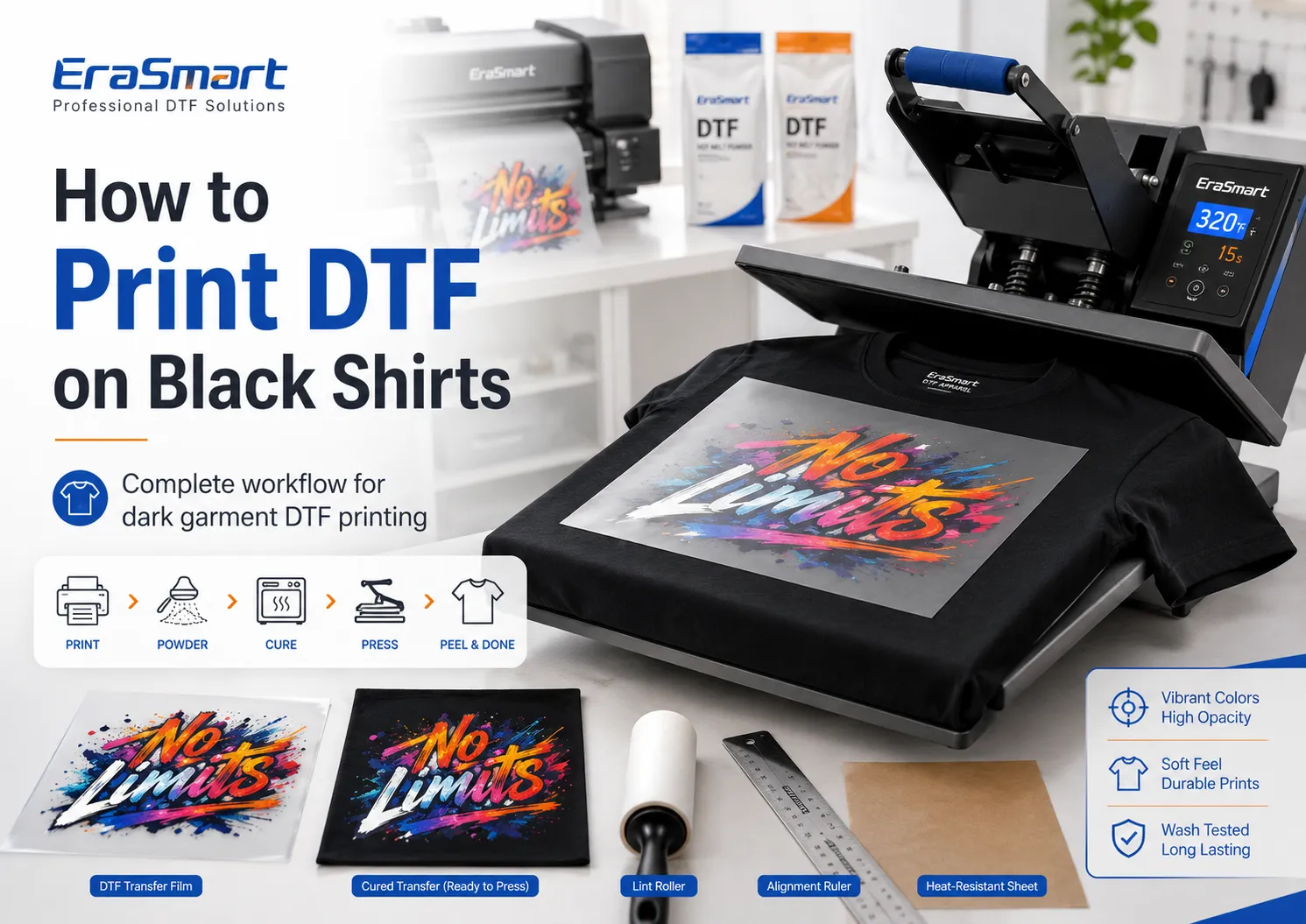
DTF printing is one of the most practical methods for producing bright, detailed graphics on black T-shirts and other dark garments. Unlike sublimation, DTF printing uses white ink beneath the color image. This white underbase prevents the dark fabric from showing through the artwork and helps CMYK colors remain visible on black, navy, charcoal and other dark-colored materials. A standard DTF workflow involves: Preparing the artwork
Printing CMYK and white ink onto PET film
Professional DTF systems print a mirrored color image onto specialty film, add a white layer, apply adhesive powder and cure the transfer before it is pressed onto fabric. Although the overall process is straightforward, black shirts reveal problems that may be less noticeable on white garments. Weak white ink, poor registration, excessive powder, incorrect pressure or dye migration can all reduce the quality of the finished print. This guide explains the complete workflow and the adjustments required for reliable DTF printing on black shirts.
Why Does DTF Work on Black Shirts? CMYK inks are not fully opaque. If CMYK were printed without a white underbase, the black fabric would absorb or visually overpower much of the color. Yellow, light blue, skin tones and pastel colors would look especially weak. DTF solves this problem by printing an opaque white ink layer behind the CMYK image. The layer order on the film is normally: CMYK image
When the transfer is placed face down on the garment, the final visible order becomes: Garment
This structure allows the white layer to isolate the color image from the dark fabric. White ink is therefore not simply an optional design color. It is a functional part of the transfer system used to create opacity on dark garments. Modern DTF systems use CMYK plus white ink and often include circulation technology because white pigment requires stable handling.
What Equipment and Supplies Do You Need? Prepare the following equipment and materials. Essential DTF equipment DTF printer
DTF curing oven or suitable curing system
A complete DTF workflow depends on the compatibility of the printer, ink, film, powder, curing equipment and heat press. Changing one component can change the required settings and final performance. The EraSmart DTF consumables guide explains how ink, PET film and adhesive powder work together.
Choose the Right Black Shirt Not every black garment reacts to heat in the same way. Before production, check the fabric label and identify whether the shirt is: 100% cotton
Black cotton shirts Cotton is usually straightforward for DTF transfer application. A tightly woven, smooth shirt generally provides a more even pressing surface than a rough or heavily textured garment. Check for: Loose fibers
Black cotton-polyester blends Blends can provide good DTF results, but the polyester content may make the garment more sensitive to heat. Always test the specific shirt because two products labeled “50/50 blend” may still behave differently. Black polyester shirts DTF can be applied to polyester, but heat-sensitive garments require additional testing. Dark or sublimated polyester may also experience dye migration. This happens when garment dye is reactivated by heat and moves into a light-colored transfer layer, causing white areas to become gray, blue, red or muddy. The risk is generally higher with: Sublimated sports jerseys
Lower-temperature compatible transfer systems and material testing can help reduce the risk, but no workflow should be assumed safe without testing the actual garment.
Step 1: Prepare the Artwork Create or import the design using software such as: Adobe Photoshop
The artwork should be prepared at the intended print size. Remove the background Use a transparent background unless the background is intentionally part of the design. An unwanted rectangular background may be printed with white ink underneath, creating a visible block on the shirt. Check the artwork resolution Use a source file with enough detail for the intended physical size. Do not enlarge: Screenshots
EraSmart’s guide to the best DPI for printing explains how file resolution and print dimensions affect sharpness. Use the black garment as part of the design When printing on a black shirt, some black areas in the artwork may be removed so the shirt itself provides the black color. This technique can: Reduce ink consumption
However, do not automatically remove every black element. Fine black details surrounded by light colors may still need to remain in the printed artwork. Check small details Very thin lines, tiny text and isolated pixels can be difficult to reproduce consistently. Inspect: Fine outlines
Simplify artwork that contains elements too small to survive printing, powdering, peeling and washing.
Step 2: Configure the White Underbase The white underbase is one of the most important settings for black-shirt printing. Your RIP software may allow you to control: White ink density
Use enough white for opacity An insufficient white layer can cause: Muted colors
Do not automatically use maximum white Excessive white ink can cause: Longer curing
The correct white density is the lowest level that produces sufficient opacity and stable transfer performance. Apply underbase choke A small white choke slightly reduces the edge of the white layer beneath the CMYK image. This helps prevent a visible white border when color and white registration are not perfectly aligned. Too much choke may remove white beneath fine details, while too little may create white halos. Test the RIP setting using small text, fine lines and curved edges. Maintain accurate CMYK and white registration White ink must align correctly behind the color image. If the layers are misaligned, you may see: White borders
Printer manufacturers recommend selecting the appropriate dark-media or film alignment mode when configuring white and CMYK registration for DTF production.
Step 3: Check the Printer Before Production Before printing the customer design: Perform a nozzle check.
Confirm that all CMYK channels are printing.
Confirm that the white channels are complete.
Check that the film is loaded on the printable side.
White ink quality can deteriorate if pigment settles or nozzles become restricted. Daily agitation, circulation and nozzle checks help maintain consistent opacity. Do not continue printing if the white nozzle pattern is incomplete. A transfer may appear acceptable on the film but produce weak or uneven color after application to a black shirt.
Step 4: Print the Design on DTF Film Load the PET film according to the printer and film instructions. The general printing order is: Print the mirrored CMYK image.
Print the white underbase over the color.
Keep the printed film flat and protected.
The image must be mirrored because the printed side will face the garment during heat pressing. Professional DTF workflows print CMYK first and white afterward so that the color layer becomes the visible outer surface after transfer. Inspect the printed film Before applying powder, check: Color completeness
Do not powder a visibly defective print. Correcting the print first is less expensive than wasting powder, curing time and a garment.
Step 5: Apply Hot-Melt Powder Apply powder while the printed ink is still wet. The powder should contact the white ink evenly. Manual powdering process Place the printed film in a powder tray.
Gently move or lift the film so powder reaches the full design.
Remove loose powder outside the printed area.
Avoid excessive powder Too much powder can cause: Rough edges
Too little powder can cause: Missing adhesive
Epson warns that DTF powder should be handled away from the printer because powder contamination inside the machine can cause malfunctions.
Step 6: Cure the Powder The powder must be heated until it forms a stable adhesive layer. Possible curing equipment includes: DTF curing oven
Non-contact heat press method supported by the consumable supplier
Do not use one universal curing temperature or time for every DTF system. Correct curing depends on: Powder formulation
Use the settings specified for the ink, film and powder combination. Signs of undercuring Loose powder remains
A properly cured transfer should have an even adhesive layer without loose powder or burnt areas.
Step 7: Prepare the Black Shirt Place the shirt on the heat press platen. Remove lint Use a lint roller to remove: Dust
Lint beneath the transfer can create bumps, incomplete adhesion or visible imperfections. Check seams and raised areas Seams, collars, pockets, buttons and zippers can prevent even pressure. Use: Heat press pillow
The transfer area should be the highest and flattest part of the pressing surface. Pre-press the garment A short pre-press may help: Remove moisture
Do not pre-press longer than necessary, especially on heat-sensitive polyester.
Step 8: Position the Transfer Place the cured film design-side down on the shirt. Use a garment ruler to check: Horizontal center
Secure small transfers with heat-resistant tape if movement is likely. For batch orders, document the placement measurements so every garment remains consistent.
Step 9: Heat Press the Transfer Use the time, temperature and pressure specified by the film, powder or complete consumable system supplier. Pressing conditions should not be copied blindly from another printer or transfer brand because optimum settings vary with the transfer system and heat press. Before production, verify: Actual platen temperature
Pressure matters Insufficient pressure can cause: Edge lifting
Excessive pressure can cause: Press marks
Pressure should be firm enough for even adhesion without damaging the garment.
Step 10: Peel the Film Correctly DTF film may be designed for: Hot peel
Follow the film manufacturer’s instructions. Hot peel The carrier is removed shortly after the press opens. Warm peel The transfer rests briefly before peeling. Cold peel The transfer must cool more fully before the carrier is removed. Peeling at the wrong temperature can cause: Image lifting
Read the EraSmart hot peel vs cold peel film guide for a more detailed comparison. Peel smoothly at a controlled angle rather than pulling the film abruptly upward. If part of the image lifts, stop peeling. Place the carrier back down and review the press settings instead of forcing the peel.
Step 11: Complete the Finishing Press A short finishing press is commonly used after peeling. Place a suitable finishing sheet over the design and press according to the transfer-system instructions. Possible finishing materials include: Parchment paper
A finishing press may help: Improve adhesion
Do not overpress. Additional heat can make some transfers harder and may increase dye migration on polyester.
Recommended Test Process Before Full Production Before printing a large order, produce a controlled sample. Record: Test item What to check Shirt composition Cotton, blend or polyester White density Opacity without excessive buildup Powder coverage Even adhesion without halos Cure result No loose or burnt powder Press settings Time, temperature and pressure Peel timing Hot, warm or cold Surface feel Flexible and even Edge adhesion No lifting Color Bright and accurate Wash result No separation or cracking Delayed inspection No polyester dye migration For black polyester and sublimated garments, inspect the product again after it has cooled and rested. Dye migration may develop after the initial press rather than appearing immediately.
Common Problems When Printing DTF on Black Shirts Problem Possible cause Recommended action Colors look dull Weak or uneven white underbase Check white nozzles and adjust density Black fabric shows through Insufficient white opacity Increase white carefully and retest White border around design White and CMYK misalignment Align the printer and adjust choke Transfer does not stick Insufficient pressure, undercured powder or incompatible settings Test the full transfer system again Edges lift Uneven platen or insufficient adhesive Check seams, pressure and powder coverage Film will not peel cleanly Incorrect peel timing or press settings Confirm whether the film is hot, warm or cold peel Powder halo appears Excess powder outside the image Remove loose powder before curing Print feels too thick Excessive white, powder or ink coverage Reduce buildup and simplify solid areas Design cracks Incorrect curing, pressing or transfer system Review cure and press conditions White areas become tinted Polyester dye migration Use a suitable lower-temperature system and test the garment Press marks appear Excess heat or pressure Reduce exposure and use a pressing pillow Fine details disappear Artwork too small or insufficient adhesive Increase detail size and inspect powder coverage EraSmart’s common DTF printing problems guide provides additional troubleshooting steps.
Design Tips for Better Black-Shirt Prints Use contrast intentionally Black shirts work well with: White
Metallic-look artwork simulated through color
Dark artwork may disappear unless surrounded by lighter elements. Avoid unnecessary solid backgrounds A large rectangular printed background can create: Heavy hand feel
Use transparency and allow the black shirt to become part of the composition. Use negative space Negative space reduces the transferred area and can make large designs more flexible. Check transparency effects Semi-transparent shadows and glows may interact unpredictably with the automatically generated white underbase. Preview the color and white layers separately in RIP software. Create separate artwork versions A design prepared for a white shirt may not be suitable for a black shirt. Create a dark-garment version with: Adjusted outlines
How to Improve Wash Durability Wash durability depends on the complete production process. Important factors include: Compatible ink, film and powder
Provide care instructions such as: Wait before the first wash according to the transfer supplier’s guidance.
Wash in cold or moderate-temperature water.
Use low-temperature drying when possible.
Does a Black Shirt Need Pretreatment for DTF? No garment pretreatment is normally required when using the DTF film-transfer process. The design is printed onto film, combined with adhesive powder and transferred onto the fabric. This differs from direct-to-garment printing, where dark garments commonly require pretreatment before white ink is printed directly onto the fabric. Do not apply DTG pretreatment to a shirt unless the specific DTF workflow requires it.
Can DTF Print on Black Polyester? Yes, DTF can be used on black polyester and polyester blends, but test printing is essential. Pay particular attention to: Heat sensitivity
For additional guidance, see why DTF works on dark polyester .
Is More White Ink Always Better on a Black Shirt? No. Increasing white density can improve opacity when the existing layer is too weak, but maximum white ink does not automatically produce the best transfer. Too much white may increase: Ink cost
Start with the profile designed for your ink and film, then adjust using printed tests. The goal is stable opacity, not the thickest possible white layer.
Final Thoughts DTF printing is well suited to black shirts because its white ink underbase separates the CMYK image from the dark fabric. For reliable results: Choose a suitable garment.
Prepare high-quality transparent artwork.
Check white and CMYK nozzles before printing.
Print onto the correct side of the PET film.
Apply powder evenly while the ink is wet.
Use the specified pressing and peeling method.
Test wash durability and polyester dye migration.
Avoid relying on a universal temperature or automatically adding maximum white ink. The correct settings depend on the entire production system. EraSmart offers compact and production-level DTF printer solutions for custom T-shirts, hoodies, tote bags, workwear and other dark-garment applications. Beginners can also review the EraSmart DTF production workflow before setting up their first complete print-and-transfer process.
Frequently Asked Questions Can DTF print bright colors on a black shirt? Yes. The white ink underbase provides an opaque foundation that helps CMYK colors remain visible on black fabric. Do I need to print white ink on a black shirt? Yes, a white underbase is normally required beneath the color image. White may also be used as a visible design color. Should a DTF design be mirrored? Yes. The image is normally printed in reverse because the printed side of the film faces the garment during transfer. What temperature should I use for DTF on a black shirt? Use the settings specified for your film, powder, ink and garment. There is no single temperature suitable for every DTF system. Can DTF be applied to black cotton? Yes. Black cotton T-shirts are a common DTF application. Can DTF be applied to black polyester? Yes, but polyester should be tested for heat sensitivity and dye migration. Why does my DTF print look dull on black fabric? Common causes include weak white ink, missing white nozzles, incorrect white density, poor registration or black fabric showing through the transfer. Why is there a white outline around my design? The white and CMYK layers may be misaligned, or the white underbase may need a small choke adjustment. Why is my DTF transfer peeling from the shirt? Possible causes include undercured powder, insufficient pressure, incorrect pressing settings, uneven garment surfaces or incompatible consumables. Should I peel DTF film hot or cold? Follow the film specification. DTF films may require hot, warm or cold peeling. Does DTF require shirt pretreatment? DTF film transfers generally do not require garment pretreatment. How can I prevent dye migration on black polyester? Test the exact garment, use a compatible lower-temperature transfer system where available, minimize unnecessary heat exposure and inspect the sample again after it has rested.